Change default kernel
How to change which kernel your Linux system boots up by default.
systemd-boot UEFI boot manager in Endeavour OS.Your system can have multiple kernels (or versions) of Linux. The default kernel is usually set to the newest one, but can be adjusted to user preference.
First, you need to identify and adjust the kernel ids used in the boot loader config file.
Find the kernel id
Edit boot loader config
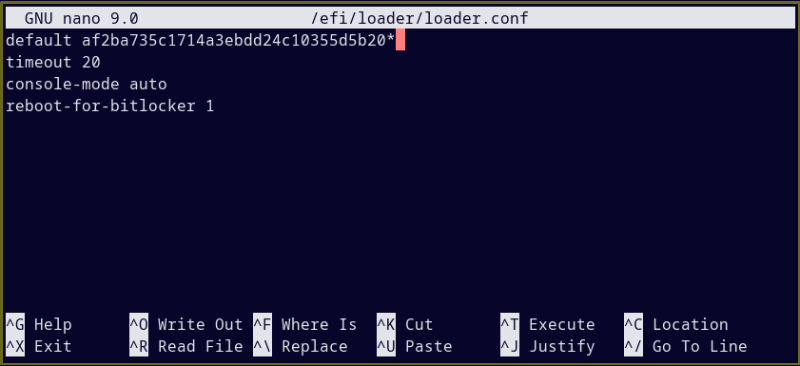
Enter
nano /efi/loader/loader.confin the terminal to edit the boot loader config.On the line containing
default, replace the oldmachine-idwith the updatedid.Add a wildcard/asterisk after the
id(no space in between). This ensures the same kernel is booted regardless of release version, which can change after system updates.default <machine-id>* # add wildcard * timeout 20 # wait time (sec) before system boots default console-mode auto reboot-for-bitlocker 1Double check the kernel
idyou entered is an exact match with the one frombootctl list.Press
Ctrl+Xto finish editing, then pressYto save the updated config.
Verify and reboot
Run
bootctl listagain to verify the desired kernel has(default)by the kernel title.type: Boot Loader Specification Type 1 (.conf) title: EndeavourOS (0.0.0-arch0-0) (default) # new default id: <new-default-id>-0.0.0-arch0-0.conf source: ...Rebootthe system to check that the correct kernel boots by default.
Useful resources
Last updated 22 Nov 2022, 12:36 +0000.