Install from live session
How to set up partitions and complete the Linux Mint installation.
Overview
With your liveboot USB set up, you can prepare to boot into a live session of Linux Mint.
First, you need to set your computer system to recognize that it should boot from a different device at startup (your Ventoy device). This option is changed in your computer’s BIOS MENU.
Boot up live session
In a live session, you can safely test out any programs and the desktop environment without impacting the OS installed on your computer. This is a good way to test out distros before installing them as well.
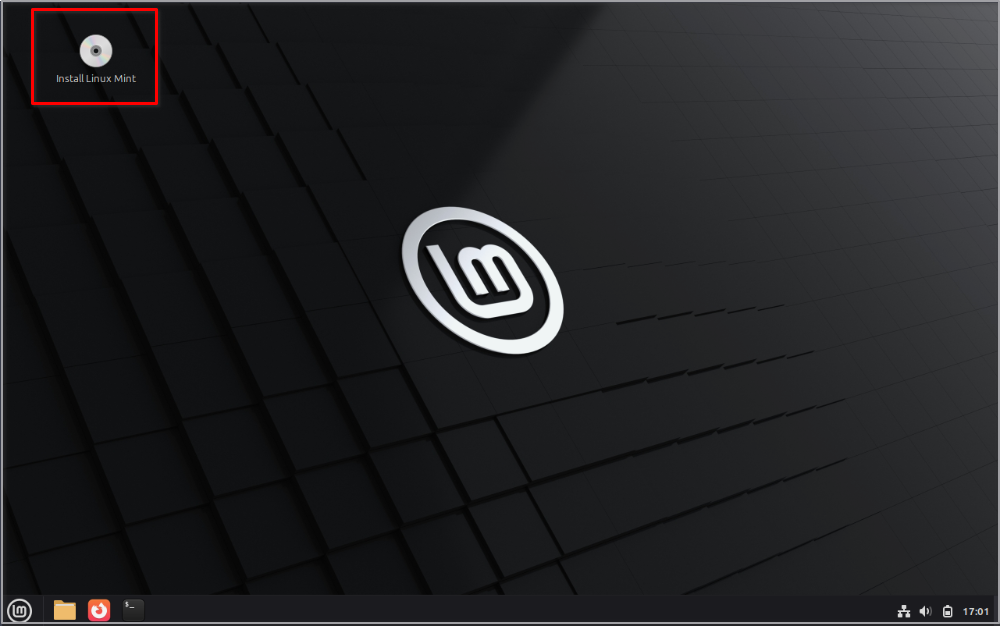
Double-click on the Install Linux Mint application on the desktop (top left corner).
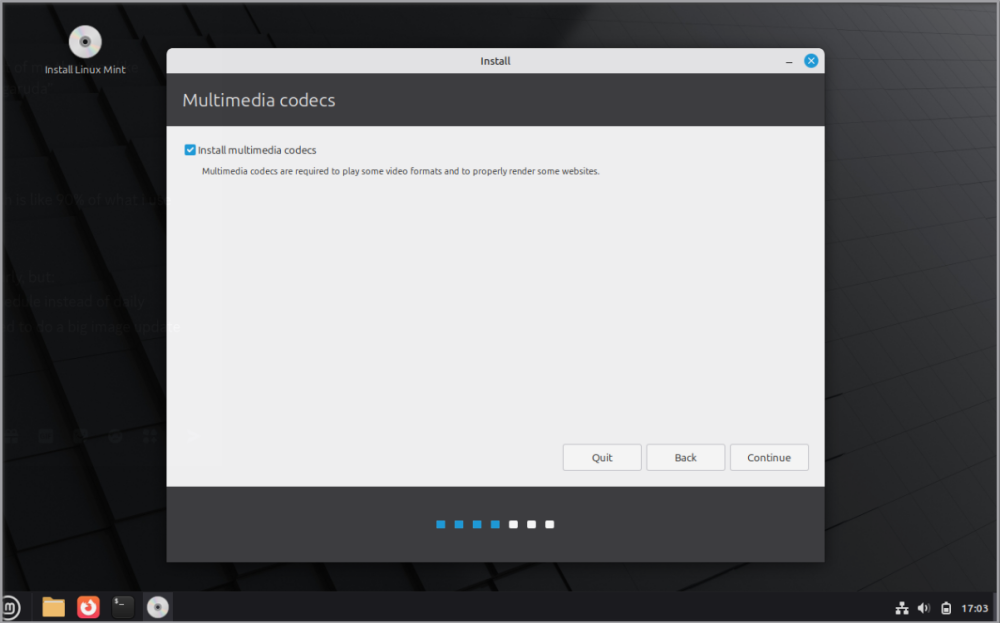
Select the options in each step as desired for your computer setup. It is recommended to install with an internet connection for access to all files.
Set up partitions
A standalone operating system means that there is no other OS installed on the computer.
Multi-booting is when there are 2 or more OSes installed. Setting up partitions differs slightly depending on this setup.
Dualbooting is a setup recommended for users who need to access Windows/macOS-exclusive programs on occasion. This may also be helpful for new Linux users who want to ease into using Linux Mint.
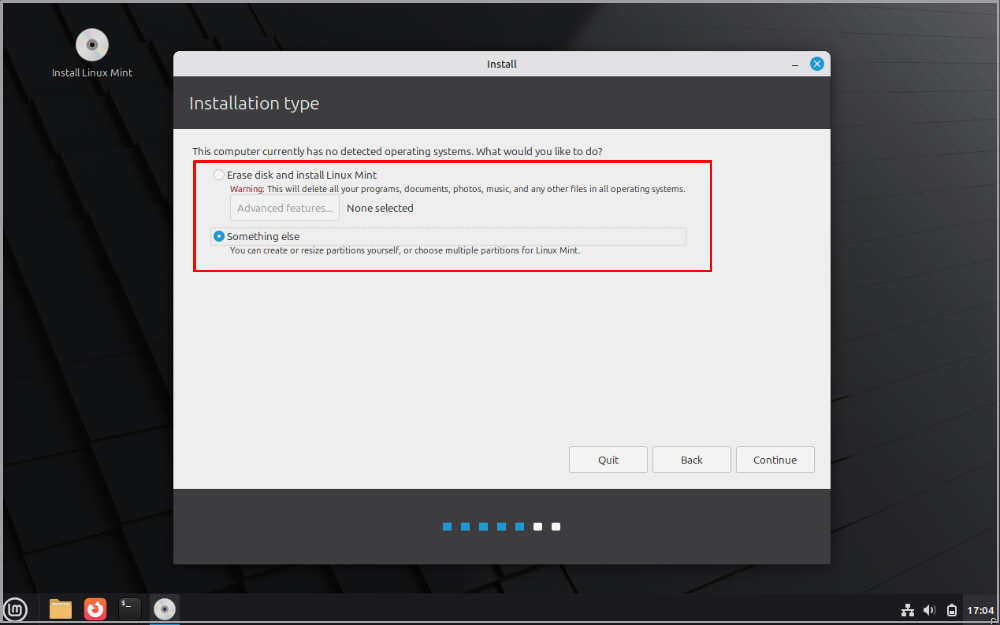
To install Linux Mint as a standalone OS, select the Erase disk and install Linux Mint option.
For a multi-boot setup, select Something else to manually set up your partitions.
Refer to the following official guides for a detailed explanation on setting up partitions.
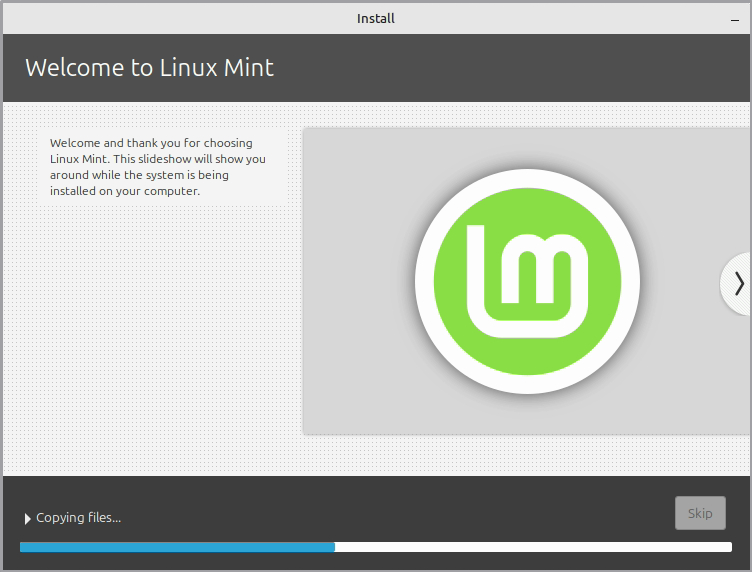
After setting up your partitions, click on Install Now. The installation process may take up to a couple hours. Wait until this finishes.
Restart computer
When the installation is finished, select Restart Now.
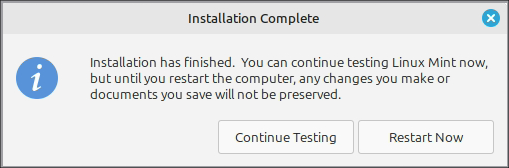
Keep the liveboot USB inserted until the system asks you to remove it.
The system will now restart and boot up Linux Mint. Welcome to the mint containment breach!
Last updated 23 Jun 2026, 16:11 -0700.